Two stable work zones
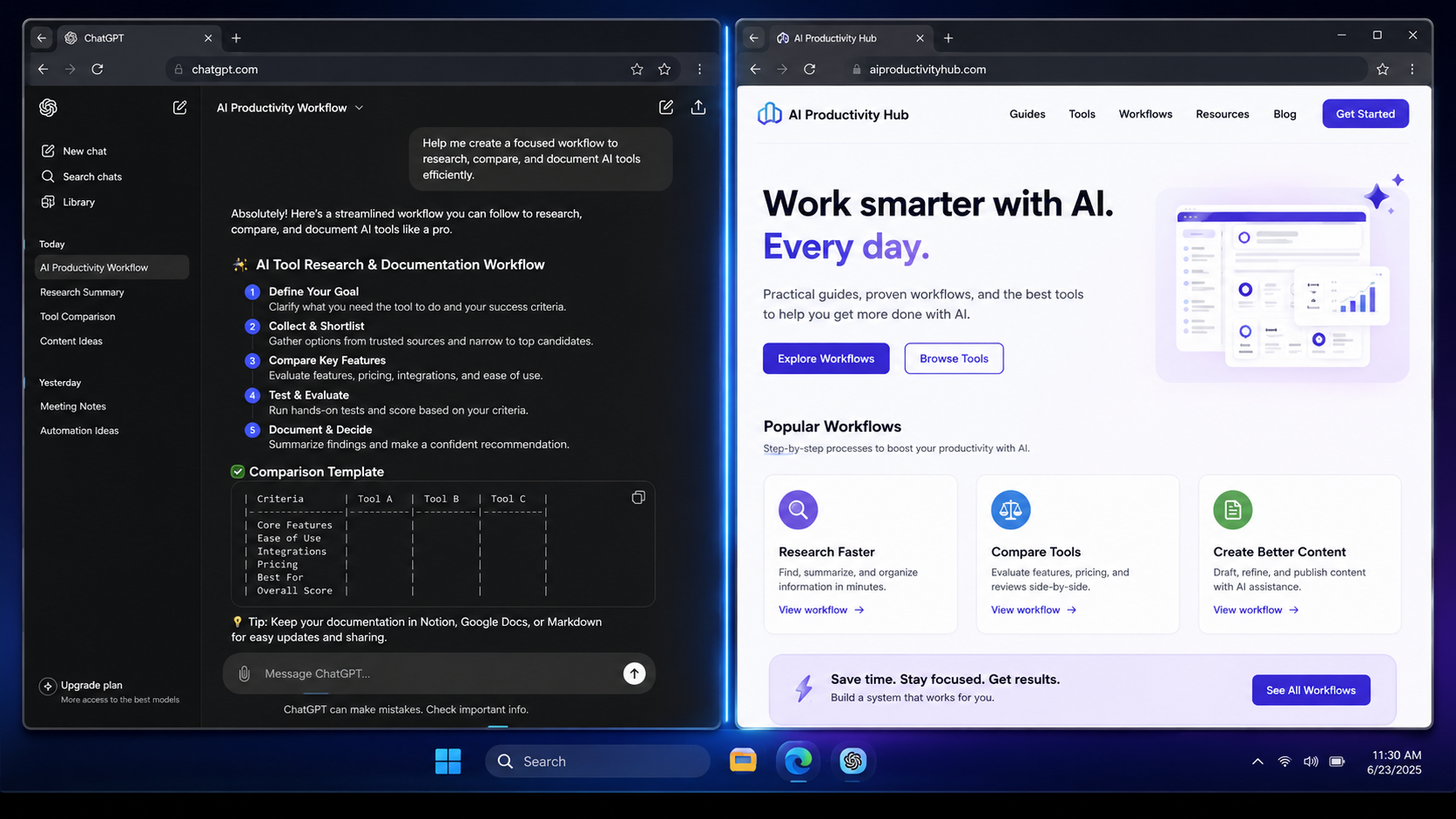
Keep ChatGPT, Claude, or another assistant on one side while your browser, document, or app stays visible on the other.
DesktopCorral keeps your assistant on one side and your browser on the other, so screenshots, research, comparison, and everyday AI work stop turning into window chaos.
Windows installer. Tray utility. Built for a clean left/right workflow with ChatGPT, browsers, docs, and screenshots.
Why it helps
Keep ChatGPT, Claude, or another assistant on one side while your browser, document, or app stays visible on the other.
When the source window stays put, it is easier to capture the right window or rectangle without dragging half your desktop around first.
Move a window across the divider and DesktopCorral can reassign it to the other side instead of snapping it back.
Extensions are great for one-click actions, but serious AI work often needs a full browser window, a full assistant window, file uploads, image uploads, and the exact page state visible at the same time.
DesktopCorral gives that work a stable shape: assistant on the left, source material on the right, fewer floating panels, fewer disappearing windows, and less screenshot waste.
Install it, launch it, and keep your desktop split into clean left and right zones. It is intentionally small because the point is to get out of the way.
Windows setup installer. Because this is a direct download, Windows may show a trust warning until the app is code-signed or distributed through a store.
Download installer →The installer is hosted on GitHub Releases so it stays outside the website deploy and avoids static-site file size limits.
Simple workflow