Change folder colors
Customize selected folders with practical colors like blue, green, red, purple, gray, black, white, yellow, and more.
FolderCharm is a simple Windows app for changing folder colors and adding optional badge icons. Organize projects, clients, finance folders, private folders, favorites, and more with clean custom folder icons.
Windows 10 and Windows 11. Lightweight installer. No shell extension required.
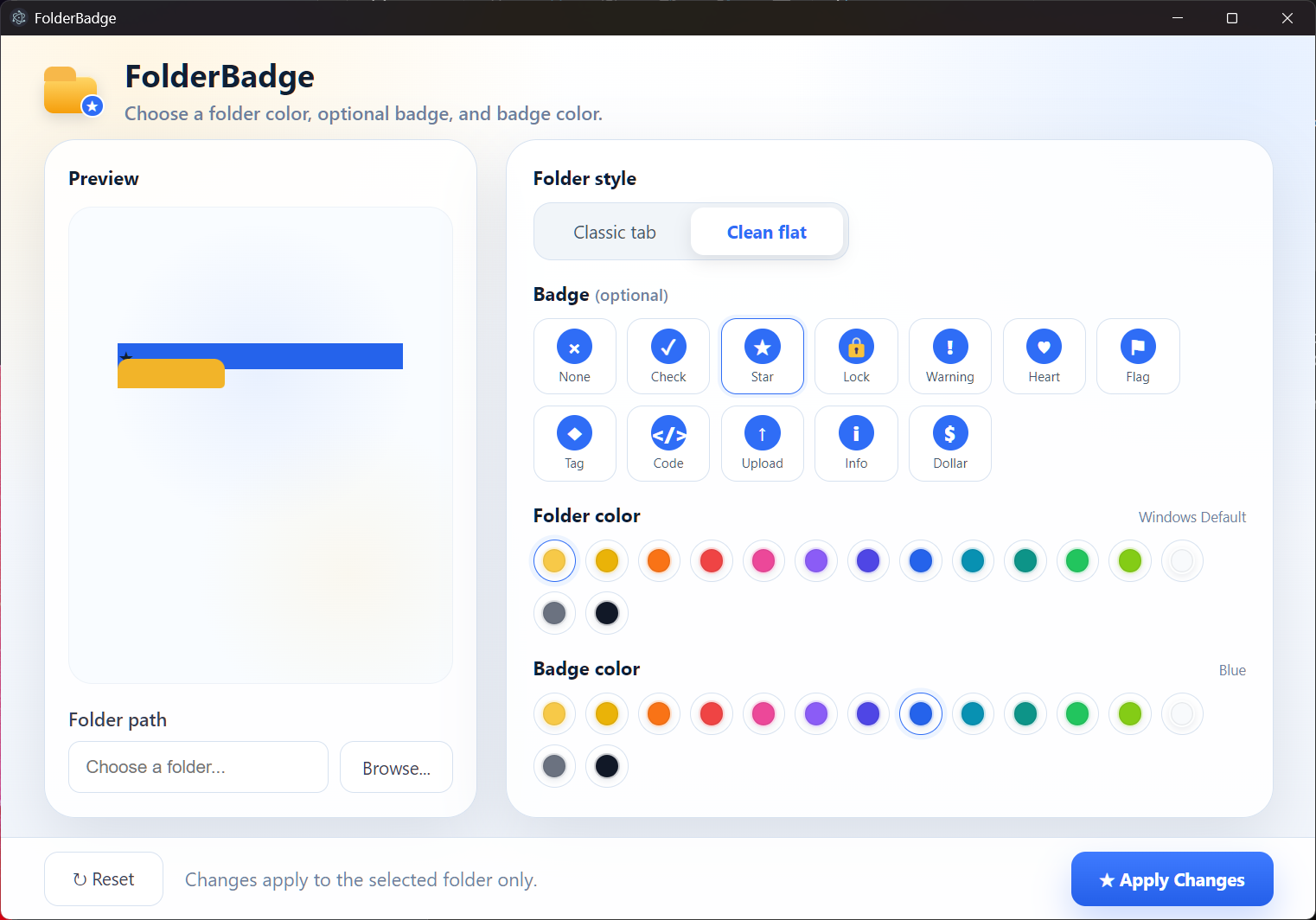
FolderCharm helps you visually organize folders without clutter, complicated settings, or shell extensions.
Customize selected folders with practical colors like blue, green, red, purple, gray, black, white, yellow, and more.
Mark folders as important, complete, private, high priority, informational, client-related, finance-related, or favorites.
Undo custom folder icons and return the selected folder to its normal Windows appearance.
Designed as a Windows-first desktop app for Windows 10 and Windows 11.
Choose a folder, pick a folder color, optionally choose a badge icon and badge color, then apply.
FolderCharm keeps the app lightweight and avoids adding right-click shell integration.
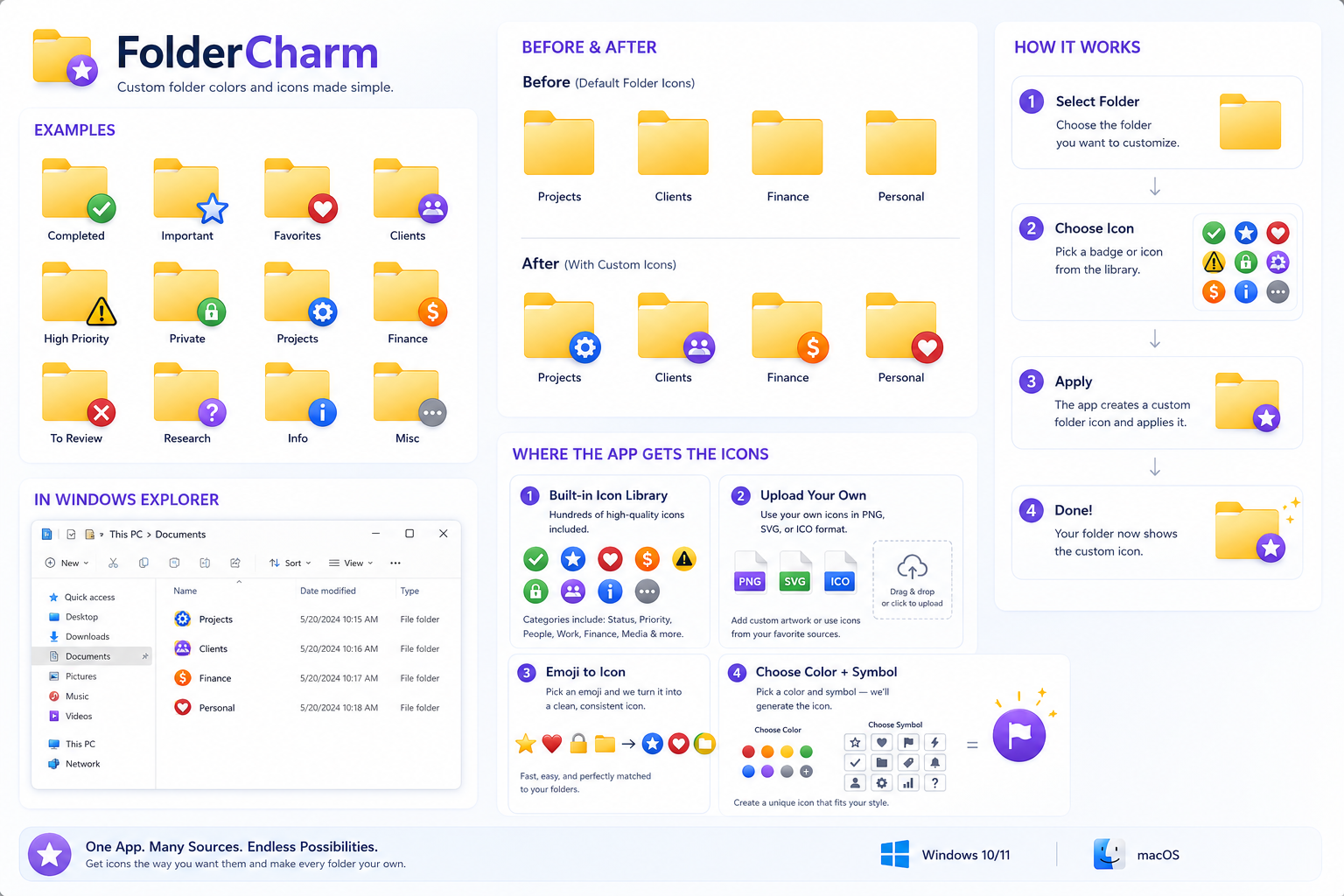
FolderCharm is intentionally simple, so you can customize folders without learning a complicated icon editor.
Choose the folder you want to customize.
Choose a folder color and folder style.
Optionally add a badge icon and badge color.
Apply the new folder icon or reset it back to normal.
Install FolderCharm and start customizing Windows folders with colors and badge icons. The installer is hosted on GitHub Releases for a clean, versioned download. Read the FolderCharm privacy policy.
It changes selected Windows folder icons by applying a custom folder color and optional badge icon.
Yes. FolderCharm is built for Windows 10 and Windows 11.
Yes. Use reset to restore the selected folder back to normal.
No. FolderCharm avoids shell extensions and right-click integration.