
Koga for iPhone
Help & instructions
A visual guide based on the supplied iPhone build. Button names and exact behavior should be checked against the final release before publishing.
Search or open a website
- Tap the address field at the top of the screen.
- Enter a website address or search terms.
- Use the keyboard action to open the result.
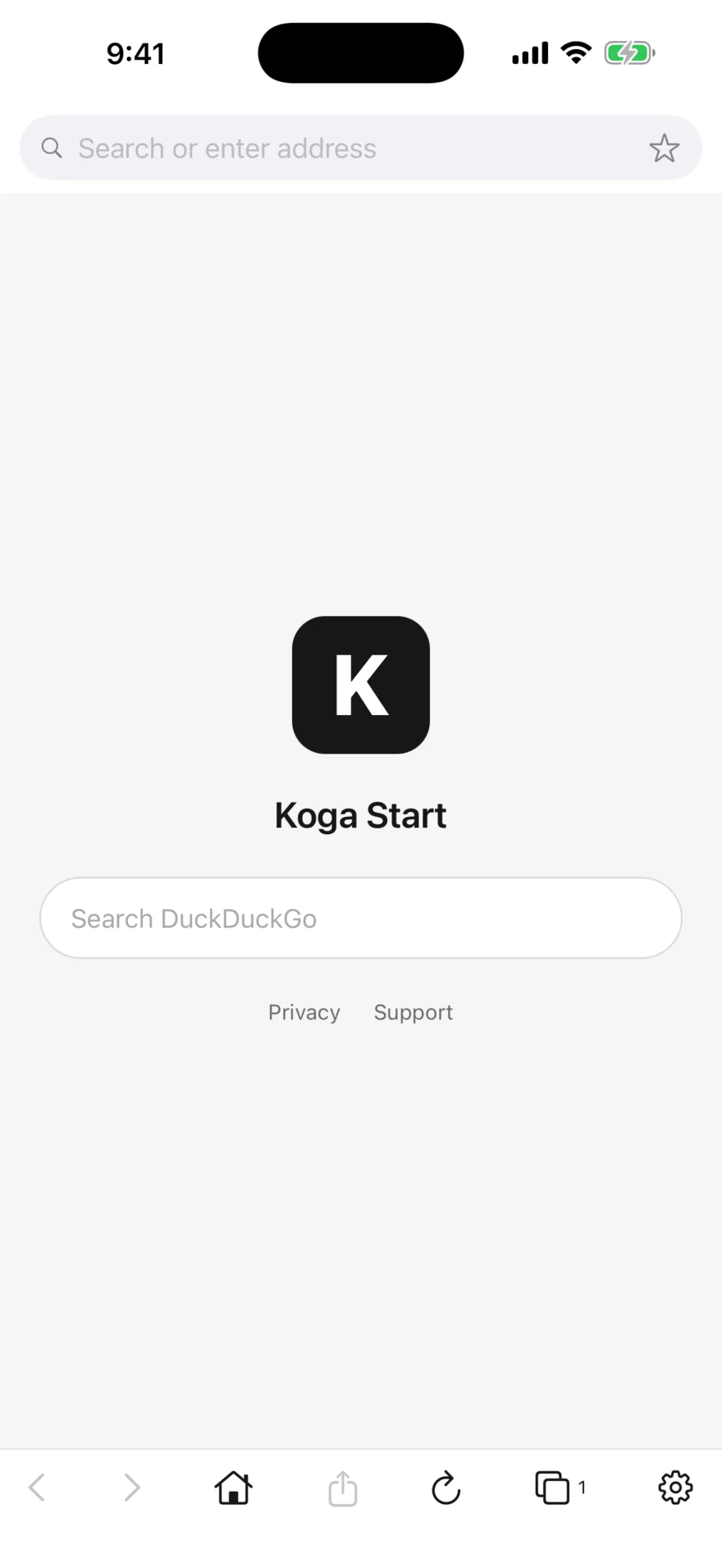
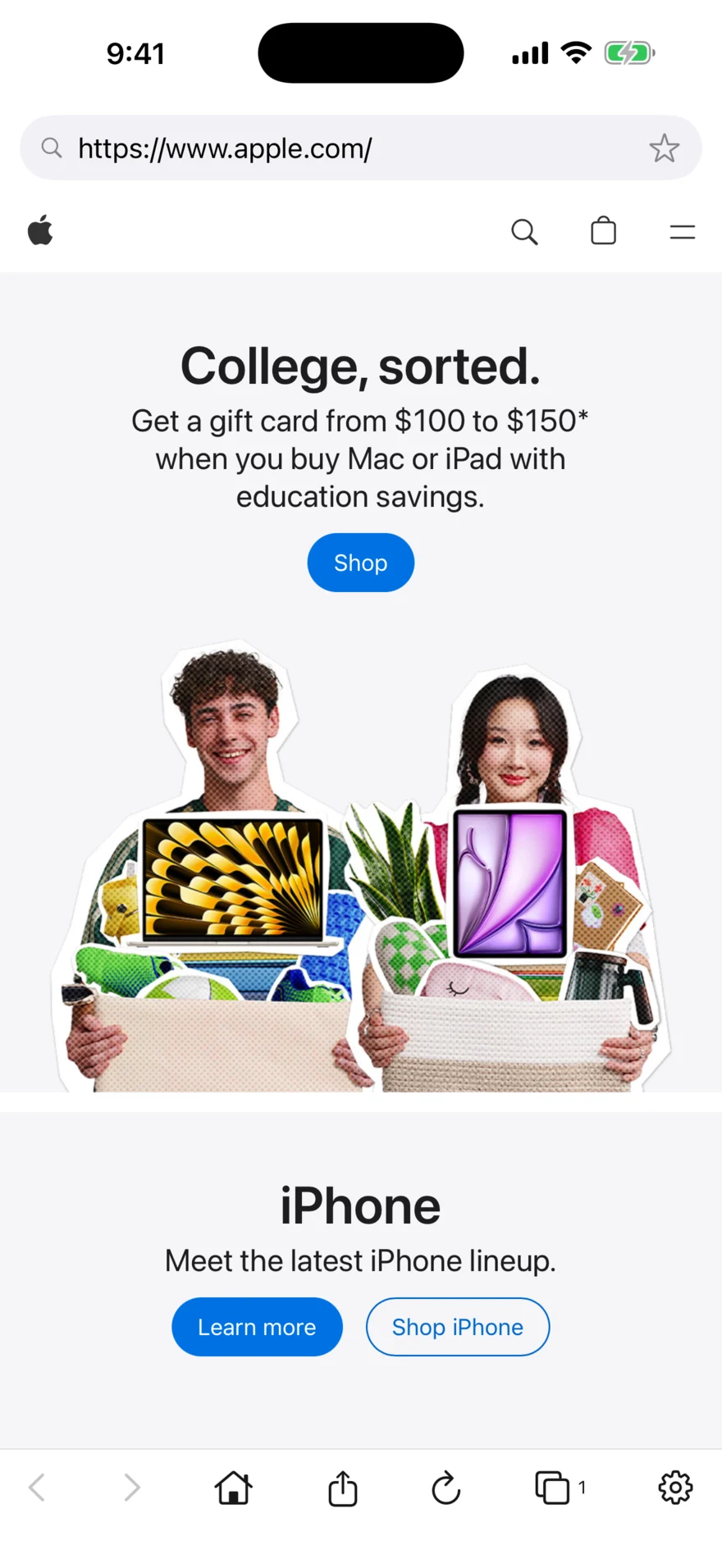
Use the bottom toolbar
- Back and Forward move through pages in the current tab.
- Home opens the homepage selected in Settings.
- Share opens the iPhone sharing controls for the current page.
- Reload refreshes the current page.
- Tabs opens the tab and bookmark sheet. Its badge shows the open-tab count.
- Settings opens appearance, homepage, privacy, support, and version information.
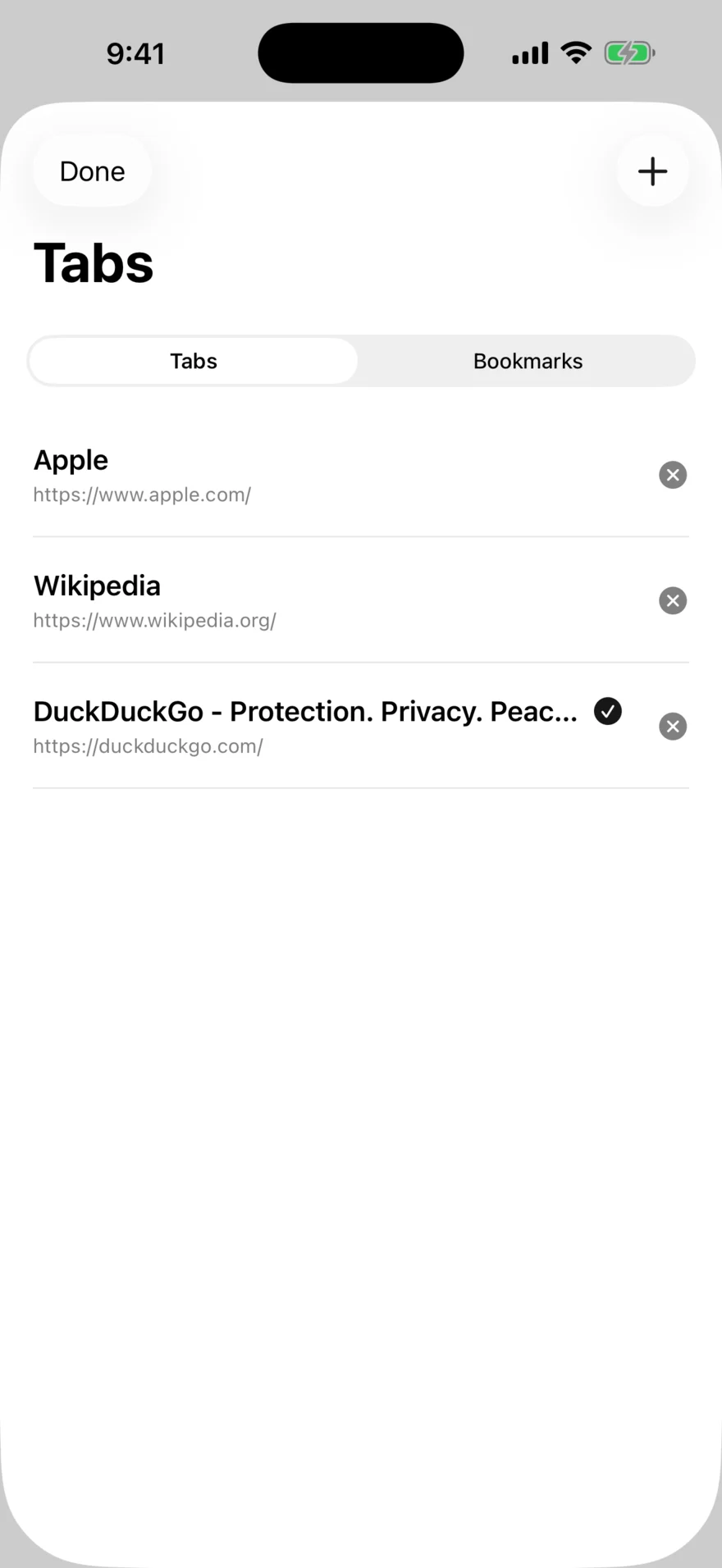
Work with tabs
- Tap the overlapping-squares Tabs button in the bottom toolbar.
- Select a listed page to return to it.
- Use the close control beside a tab to remove it.
- Tap the plus button to create a new tab.
- Tap Done to close the sheet.
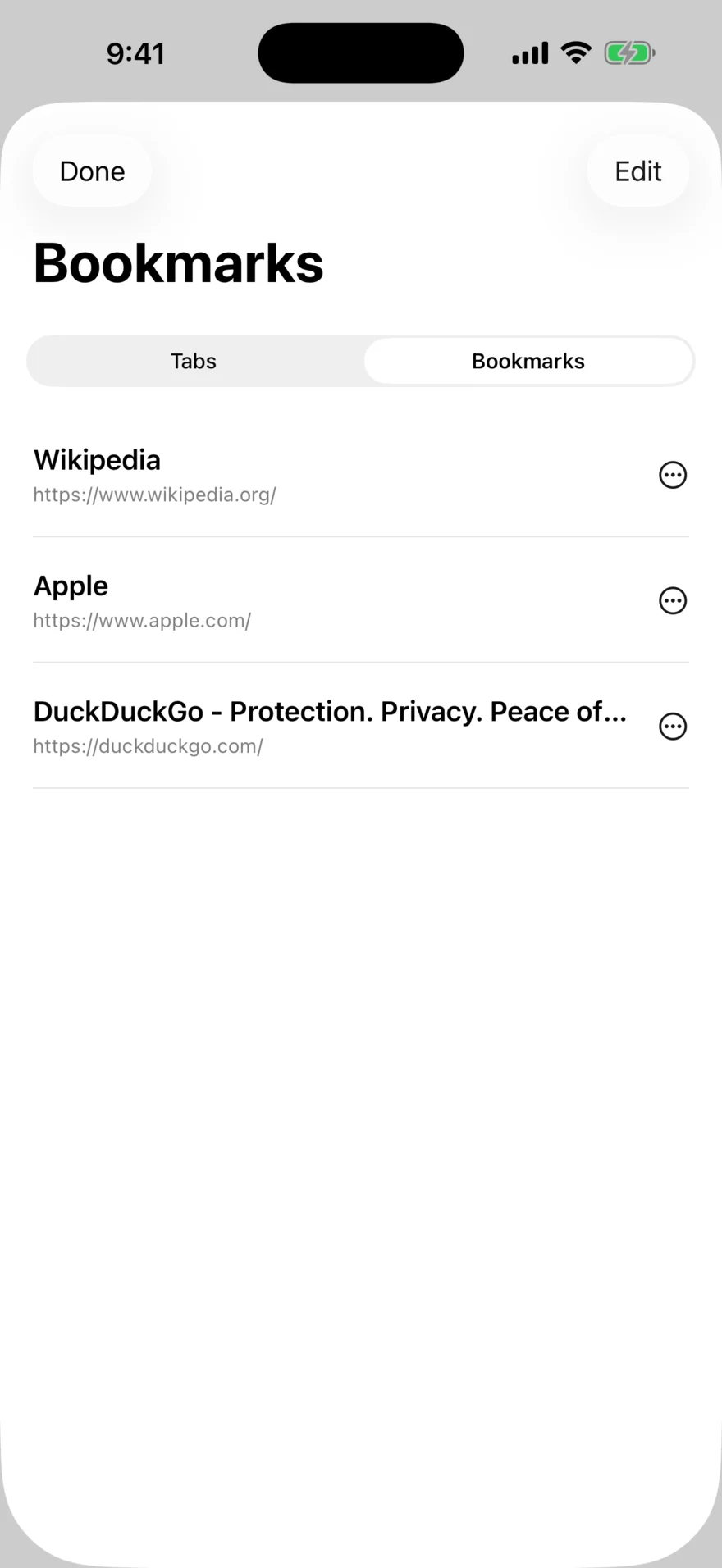
Open and manage bookmarks
Open the Tabs sheet, then choose Bookmarks in the segmented control. Tap a bookmark to open it. Use Edit for the bookmark-management options available in the current build.
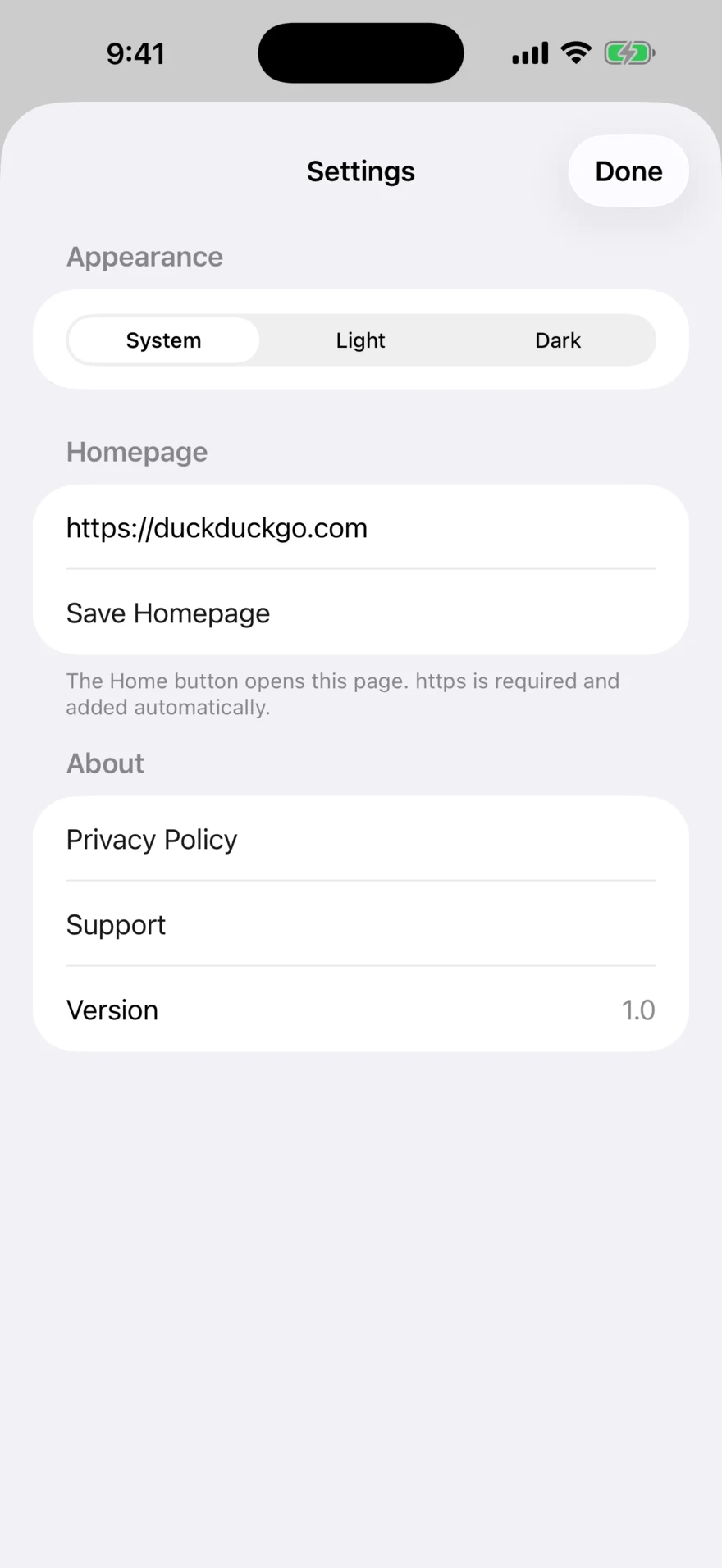
Change appearance and homepage
- Tap the gear in the bottom toolbar.
- Choose System, Light, or Dark.
- Enter a complete homepage address beginning with
https://. - Tap Save Homepage.
The Home button opens the saved address.
Portrait and landscape
Koga can present webpages in portrait or landscape when device rotation is available. Website layouts may change with the available width.
Downloads, uploads, and website permissions
These areas depend on the final iOS implementation and the website being used. Verify the app source and a release build before adding step-by-step instructions for files, camera, microphone, location, pop-ups, or permission prompts.
Need more help?
Visit Koga for iPhone Support and include the iPhone model, iOS version, Koga version, website address, and steps that reproduce the issue.